
Wellness Technology That Turns Complex Signals Into Clearer Insights
BioSignal Sync by JAMSesh Fitness & Health is a growing collection of wellness technology tools designed to make complex health and wellness information easier to understand, organize, and use.
You've Got the AO Scans.
Now See the Patterns.
AO Vitals Trend Report App for Solex AO Scan
Stop comparing reports one by one. Start seeing what keeps showing up over time.
The AO Vitals Trend Report takes your original AO Scan Enhanced Vitals reports, brings your client’s scan history together, and identifies recurring findings across multiple timeframes.
In just a few clicks, you can generate an organized PDF showing what’s consistent, what’s beginning to trend, and what’s worth watching.
The software identifies the recurring patterns. You bring the practitioner/user insight.
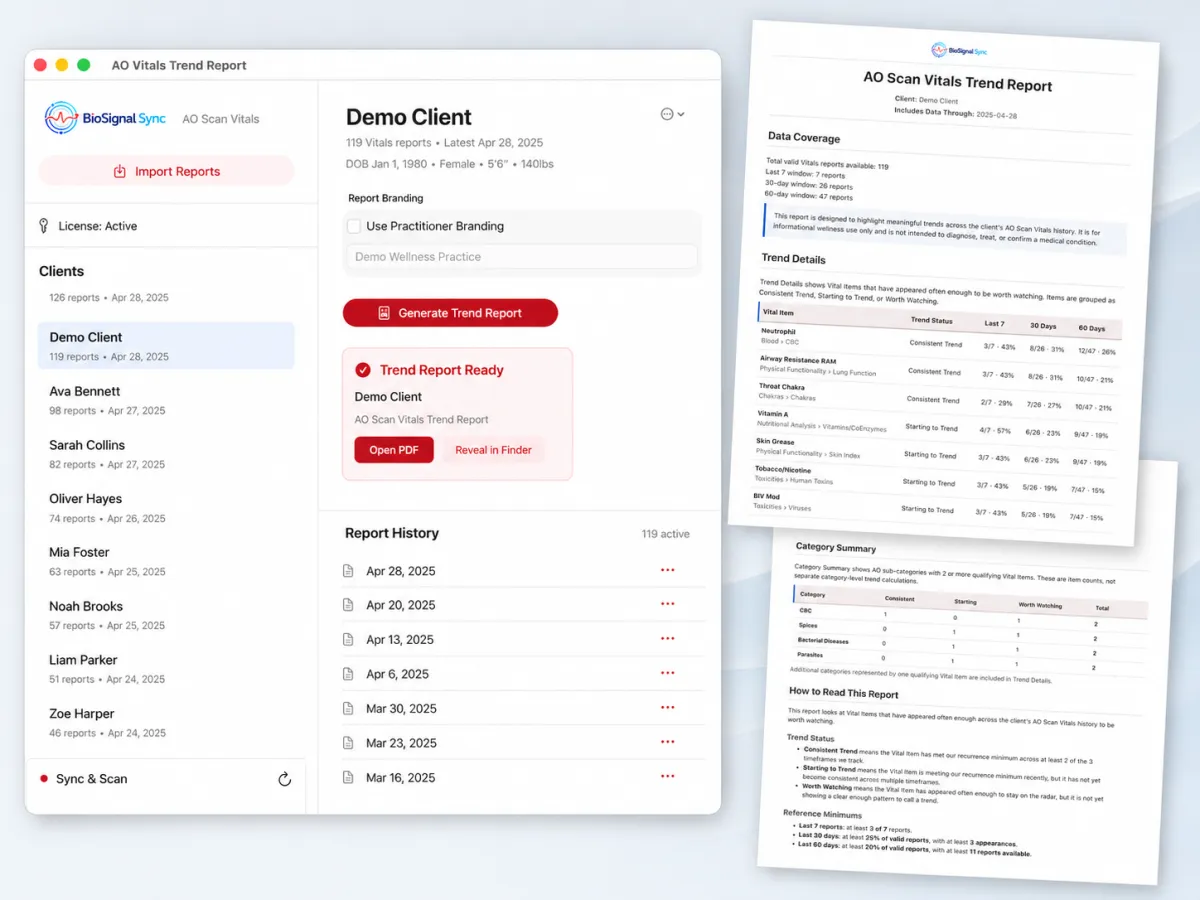
Illustrative product mockup. Actual app interface and generated reports may vary. Names are not real people.
Why I Created the AO Vitals Trend Report App
I created the AO Vitals Trend Report App because I was running into the same problem over and over again:
I had plenty of reports, but no simple way to truly track what was changing over time.
As a practitioner and AO Scan daily user, I was looking at reports for clients, family members, and people who were depending on me for answers. One report was manageable. But once there were multiple reports for multiple people, keeping track of recurring patterns became overwhelming.
Which findings kept showing up?
Was something truly trending, or did it only appear once?
What had changed over the last 30 or 60 days?
Had an item been appearing quietly for several reports and I just hadn’t noticed it yet?
Tracking patterns started to feel like a full-time job.
I tried doing it manually. I tried spreadsheets. I even tried using AI to help.
AI could read the files, but I was still doing all the work around it.
I still had to organize each client, upload the correct reports, keep track of their history, explain exactly what I wanted analyzed, define what counted as a trend, make sure the right time periods were compared, check that important line items had not been missed, and then repeat the whole process again when new reports came in.
And depending on the AI plan, file-upload limits could make working with a larger history even more cumbersome plus more expense.
That was the problem.
I didn’t need another tool that could simply read a spreadsheet.
I needed a system that could consistently track AO Vitals patterns for me.
So I created the AO Vitals Trend Report App.
Now, instead of rebuilding the analysis process every time, I can import the reports, select the client, and generate a standardized Trend Report using the same programmed trend logic each time.
The goal was simple:
Less time managing reports. More time actually understanding what the patterns may be showing.
Import the reports. Select the client. Generate the Trend Report. Done.
How It Works
1. Import Reports
Add your compatible AO Scan Enhanced Vitals xlsx reports.
2. Organize History
AO Scan Trend Report brings the report history together into one client timeline.
3. Analyze Trends
The app evaluates trends across the selected report history and timeframe.
4. Generate Report
Create a professional PDF trend report for practitioner review or your own history.
AO Scan report file requirement
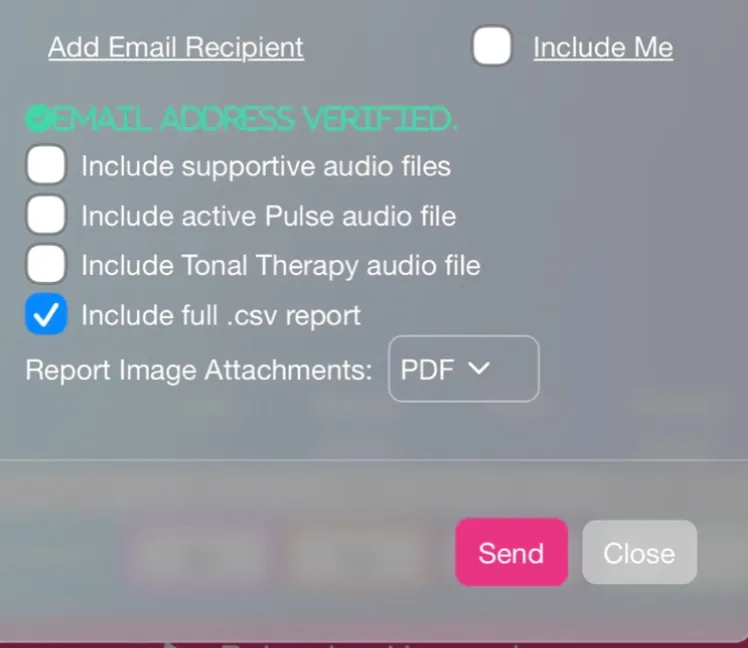
When emailing your report from the AO Scan EZ Scan, make sure “Include full .CSV report” is checked.
AO Scan may label this option as CSV, but the file you receive by email may be an Excel .xlsx file.
When emailing your Vitals report or your MultiScan reports, you just need to click on the mail button that Solex provides after the scan is completed.
That .xlsx file is what you import into AO Vitals Trend Report.
FREE AO Vitals Trend Insights Email Series
Are You Missing the Bigger Picture
in Your AO Scans?
One scan is a snapshot. But what happens when you start looking at patterns across time?
Join my FREE 5-part AO Vitals Trend Insights email series to discover why scan history matters, how recurring findings are identified, and how to get more value from your AO Vitals reports.
Practical tips, real examples, and a clearer understanding of trends. Delivered straight to your inbox!
📬 Keep an eye on your inbox! If you don't see your AO Vitals Trend Insights email, check your Spam, Junk, or Promotions folder. Look for email from [email protected]. Be sure to mark our emails as safe so you don't miss the good stuff!

Sample Video – Mac Version
The Windows version works in much the same way and includes the same core features, with a slightly different look and layout.
What the Trend Report Shows
See recurring patterns across multiple timeframes instead of reviewing individual reports one at a time.
Trend Details
See which Vital Items are appearing repeatedly across the client’s report history and how often they appeared in the Last 7 Reports, 30-Day, and 60-Day windows.
Clear Trend Status
Items are organized as Consistent Trend, Starting to Trend, or Worth Watching, making it easier to distinguish established recurrence from newer or less consistent patterns.
Category Summary
See AO sub-categories where
multiple qualifying Vital Items are appearing, giving you another way to recognize clusters of recurring findings.
Before You Purchase: Is This the Right Tool for You?
1. You have the right AO Scan files.
You’ll need the original AO Scan Enhanced Vitals Excel (.xlsx) reports emailed through Solex after you request them. These are the files you import into the app. Classic, PDF reports and other AO Scan report types are not supported.
2. You want to see patterns across time.
The more scan history you have, the more opportunities the software has to identify recurring findings. With only a few reports, there may not be enough history to establish qualifying trends yet. As you add reports, the software can evaluate new patterns as they emerge.
3. You know what the software delivers.
The app generates a structured PDF Trend Report showing recurring findings, emerging patterns, and items worth watching. It provides the trend information for practitioner review, not an automatic AI Wellness Story, medical diagnosis, or personalized treatment roadmap.
Annual subscription: $99/year, automatically renewing unless canceled. Canceling stops future renewals; your already-paid software license remains valid through its current term.
Refund requests may be considered within 14 days of the original purchase for software incompatibility or technical issues we cannot resolve, subject to our published refund policy and applicable consumer rights. This is not a free trial or general satisfaction guarantee.
Not Sure If This App Is Right for You?
Let me show you how it works!
Book a free 15-minute Zoom demo to see how the AO Vitals Trend Report organizes scan history, identifies recurring findings, and creates a PDF Trend Report.
You’ll see what the software does, what files you need, and have a chance to ask questions before purchasing.
AO Vitals Trend Report is available for Mac and Windows.
Mac
Requires macOS 14.0 or later.
Choose the installer that matches your Mac:
Apple silicon Mac
For Macs with an Apple M-series chip.
Intel Mac
For Macs with an Intel processor.
Not sure which Mac you have?
Go to Apple menu → About This Mac and look for Chip or Processor.
Windows
A Windows installer is available for compatible Windows computers.
The Windows installer is digitally signed.
When opening the installer, Windows or your antivirus software may still display a security message while checking the app. If prompted, confirm the filename is AO-Vitals-Trend-Report-Setup-1.0.0.exe and the verified publisher is Julie-Anne Cox.
Step-by-step instructions are included in the Windows Getting Started Guide.
Your annual license can be active on one computer at a time. If you move the app to another computer, remove the license from the current computer first, then activate it on the new one.
Not available for iPhone, iPad, or Android.
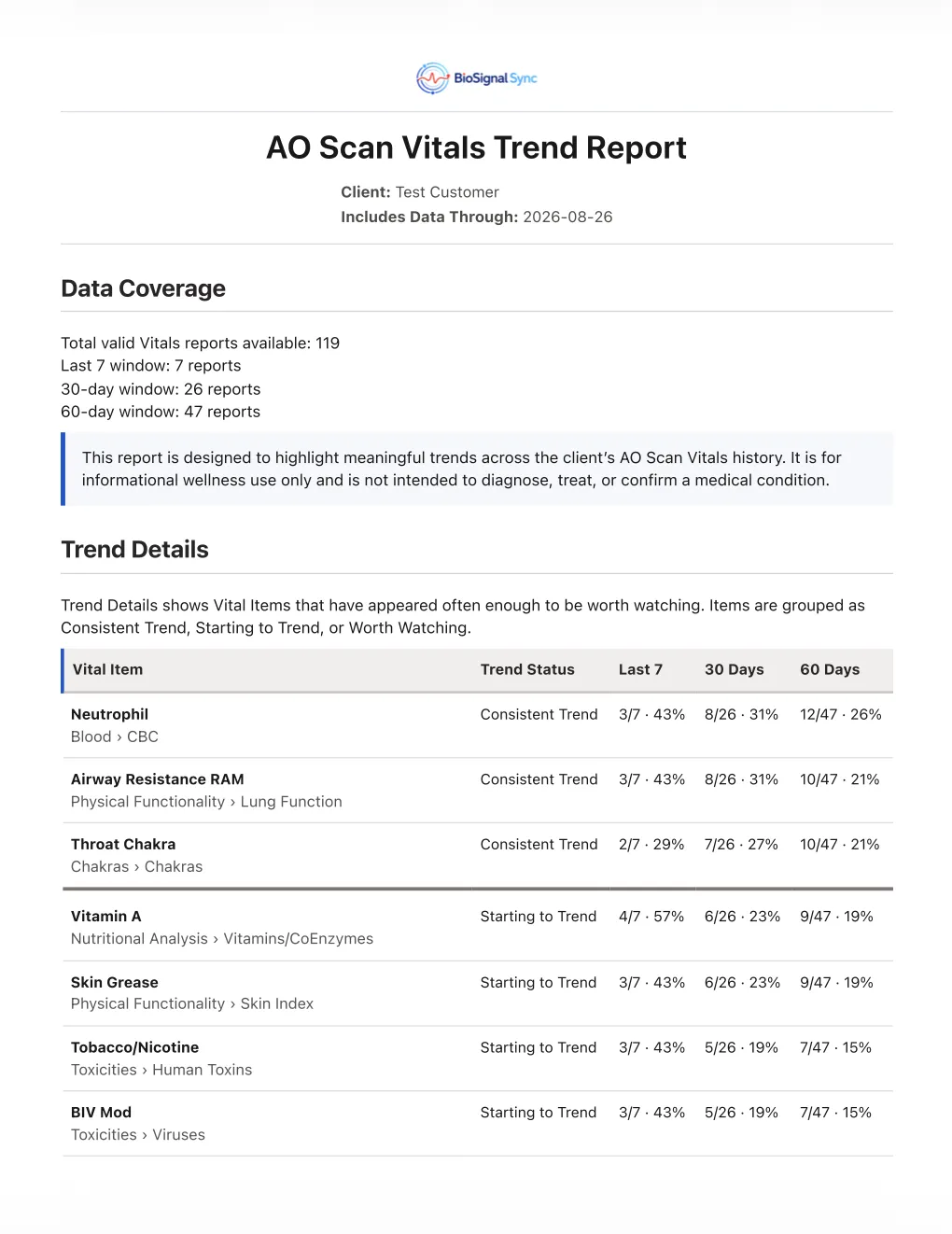
Sample report uses demonstration data and is provided to show the actual report format and functionality.
Frequently Asked Questions
What does the AO Vitals Trend Report do?
The AO Vitals Trend Report helps you see recurring patterns across a client’s AO Scan Enhanced Vitals reports over time.
Instead of reviewing reports one by one and trying to remember what keeps appearing, the app analyzes the report history and highlights Vital Items that are recurring across:
the Last 7 Reports
the 30-Day Window
the 60-Day Window
The goal is simple: make it easier to see what is consistently showing up, what may be beginning to repeat, and what may be worth keeping an eye on.
Does the Trend Report show everything from the original AO report?
No, and that is intentional.
The AO Vitals Trend Report is designed to identify repeat patterns over time, rather than reproduce every Vital Item from every individual report.
The app tracks Vital Items that fall into the more notable outer-range values of 1, 2, 8 and 9 within supported AO Scan Enhanced Vitals reports.
Those values are then reviewed across the available report history to see whether the same Vital Items are recurring over time.
The Trend Report does not simply list every 1, 2, 8 or 9 from every scan. An item must show enough recurrence within the applicable Last 7 Reports, 30-Day or 60-Day window before it appears as a Consistent Trend, Starting to Trend or Worth Watching item.
This helps keep the report focused on repeat patterns rather than isolated findings.
What do Consistent Trend, Starting to Trend and Worth Watching mean?
These labels help organize recurring Vital Items based on the strength and consistency of the pattern seen within the available report history.
Consistent Trend
A stronger recurring pattern that has continued to appear across the available reports.
Starting to Trend
A developing pattern that is appearing often enough to begin standing out.
Worth Watching
An item showing enough recurrence to deserve attention, but not yet showing the same strength of pattern as the higher trend categories.
These categories are intended to help you prioritize what may be useful to review over time. They are not diagnoses or medical conclusions.
Example - What the report shows
Why it got that label
Kefir — Consistent Trend - Last 7: 2/7 = 29% ❌ • 30 days: 8/30 = 27% ✅ • 60 days: 13/55 = 24% ✅ Kefir met the required minimum in 2 of the 3 windows. That is enough to make it a Consistent Trend, even though it did not meet the Last-7 minimum.
Goat's Milk — Starting to Trend - Last 7: 4/7 = 57% ✅ • 30 days: 4/30 = 13% ❌ • 60 days: 5/55 = 9% ❌ It is repeating strongly in the most recent reports, but it has not yet repeated enough across the longer 30- and 60-day windows. So it is Starting to Trend.
FSH — Worth Watching - Last 7: 0/7 = 0% ❌ • 30 days: 8/30 = 27% ✅ • 60 days: 10/55 = 18% ❌ It has repeated enough in one window to stay on the radar, but it is not currently repeating enough across the other windows to call it a trend. So it remains Worth Watching.
Can’t I just upload my AO Vitals reports to ChatGPT and ask it to find the trends?
Yes, ChatGPT can read Excel files and can help compare AO Vitals reports.
But that is not the same as using a tool built specifically to track AO Vitals trends.
To recreate this process manually with ChatGPT, you would need to upload the appropriate reports, keep each client’s files and history organized, provide clear instructions for exactly what should be compared, explain how you want trends identified, make sure all relevant line items were considered, and repeat that process as new reports are added.
The results can also depend on the prompt you use and how the AI interprets the request. ChatGPT is a general-purpose AI tool, not a dedicated AO Vitals trend-analysis system.
The AO Vitals Trend Report App, powered by BioSignal Sync, was built specifically for this job.
Your clients and report histories stay organized inside the app. Each time you generate a report, the AO Vitals Trend Report App applies the same programmed trend logic to the available AO Vitals data and organizes findings into:
Consistent Trends
Starting to Trend
Worth Watching
Last 7 Report patterns
30-day trends
60-day trends
There are no special prompts to write and no need to recreate your analysis process for every client or every new set of reports.
It also means you do not need to upload your clients’ AO Vitals spreadsheets to ChatGPT simply to identify their trends.
If you choose to use ChatGPT or another AI tool afterward to help discuss or explain a report, you certainly can. Client information should first be appropriately de-identified before being uploaded to an outside AI service.
Think of ChatGPT as an optional tool you can use alongside your report. The AO Vitals Trend Report App is the purpose-built tool handling the actual trend-tracking workflow.
Import your reports. Select your client. Generate your Trend Report. Done.
What happens if a client only has a few reports?
You can still begin building their history.
The app only displays trends when there is enough recurrence in the available data to support them.
If there is not enough information for a particular time window yet, that section may be limited or may not contain trend findings.
As additional reports are imported over time, the client history becomes more useful for identifying recurring patterns.
Why are there Last 7 Reports, 30-Day and 60-Day sections?
Each window gives you a slightly different view of the client’s history.
The Last 7 Reports looks at the most recent sequence of reports, while the 30-Day and 60-Day windows help show whether patterns are continuing across broader periods of time.
Together, they make it easier to distinguish a recurring pattern from something that may have appeared only briefly.
Is this a diagnostic tool?
No.
The AO Vitals Trend Report is an organizational and trend-review tool.
It does not diagnose, treat, cure, prevent or confirm any disease or medical condition, and the trend categories should not be interpreted as medical diagnoses.
The report is intended to make recurring AO Vitals patterns easier to identify and review.
Where is my client information stored?
Your imported client report history is stored locally on your computer.
The AO Vitals Trend Report does not require you to upload your client report history to BioSignal Sync in order to perform the trend analysis.
As with any client information stored on your computer, you are responsible for maintaining appropriate computer security, backups and privacy practices.
Does BioSignal Sync see my clients' AO Scan reports?
No. The app does not send your client reports or health information to us. Imported reports and client history are stored and analyzed locally on your own computer.
The app does use an online licensing system to validate your software license, but that licensing process does not include your client report contents or health data.
Can I use EZ Scan Enhanced Vitals reports?
Yes.
Sparse Enhanced Vitals reports generated through the supported EZ Scan Vitals workflow can be imported.
Because an EZ Scan may contain fewer Vital Items than a more extensive scan, there may naturally be less data available to trend. The app will still evaluate the compatible Vitals information that is present.
Can I use my license on more than one computer?
Your license is designed for one active computer at a time.
If you need to move the app to another supported computer, you can remove or transfer the existing activation and use your license on the new computer.
Do I need an internet connection to use the app?
An internet connection is required for initial license activation and occasional license validation.
The app is designed to allow normal offline use between required license validations, so you do not need to remain continuously connected to the internet while working.
Will I receive future updates?
Yes.
If an update to the AO Vitals Trend Report is released while your subscription is active, you will be eligible to receive that update.
You do not need to wait until your annual renewal date to receive updates released during your current active subscription period.
Will updates erase my client history?
Normal software updates are intended to update the application while preserving your locally stored client history.
As with any important business data, we still recommend maintaining an appropriate backup of your computer and client files.
What happens after I purchase?
After purchase, you will receive instructions that include:
your license key
the appropriate Mac or Windows download options
installation guidance
basic Getting Started instructions
Once installed, the basic workflow is simple:
Install → Activate → Import Enhanced Vitals Reports → Select Client → Generate Trend Report
Do I need to be an AO Scan practitioner to use this?
You do not need to be a "practitioner" to use this. The AO Vitals Trend Report is designed for people who already work with and have legitimate access to compatible AO Scan Enhanced Vitals reports from using the AO Scan app.
The software does not provide access to AO Scan itself and does not replace AO Scan training, practitioner judgment or appropriate professional scope of practice.
Is BioSignal Sync affiliated with Solex or AO Scan?
The AO Vitals Trend Report is a BioSignal Sync technology product from JAMSesh Fitness & Health.
It is an independent trend-analysis tool designed to work with supported AO Scan Enhanced Vitals report files.
AO Scan and related names and trademarks remain the property of their respective owners.
Can I request a refund if the app doesn’t work for me?
Refunds may be requested within 14 days of the initial purchase if the software is not compatible with your system or if you experience a technical issue that we are unable to resolve.
Because the software provides immediate access to report generation, refunds are not intended for customers who have already used the app to generate their reports and then decide they no longer need it.
The JAMSesh Method:
Minerals, Metabolism, Movement & Nervous System Support
Putting All the Pieces of Your Puzzle Together

Education and coaching are not intended to diagnose, treat, cure, or prevent disease. Always consult your physician or qualified healthcare provider before making medical, supplement, or medication changes.


© Copyright JAMSesh Fitness and Health 2026